


Blur faces in photos with AI
Hide faces in group photos, online listings, and reports. Review AI detections, adjust the blur areas, and export your photo.


365,403 photos and videos processed


How to blur a face in a photo


Detect and adjust
Review the faces detected by AI. Adjust each mask (the area covered by blur) in the editor before exporting.

Export
Download your blurred photo and check it before sharing.


Keep selected faces visible and blur the others
Questions about blurring faces in photos
How do I blur a face in a photo on iPhone?
Open YouBlur Studio in Safari or another mobile browser, import the photo, review the detected faces, then export the blurred image.
Can I blur multiple faces at once?
YouBlur can detect multiple faces in a group photo. Review each detection and check the background for faces that may have been missed.
Is the blur permanent?
The blur is applied to the exported image. Keep the original separately, and inspect the export to make sure it hides the details you intended.
Can I choose which face to blur in a photo?
Yes. Review the detected faces and adjust the masks (the areas covered by blur) before exporting.
What photo formats are supported?
JPG, PNG, and WebP are the most common supported formats.
Edit easily with YouBlur.com Edit easily with YouBlur.com
Tools for editing photos and videos in your browser.
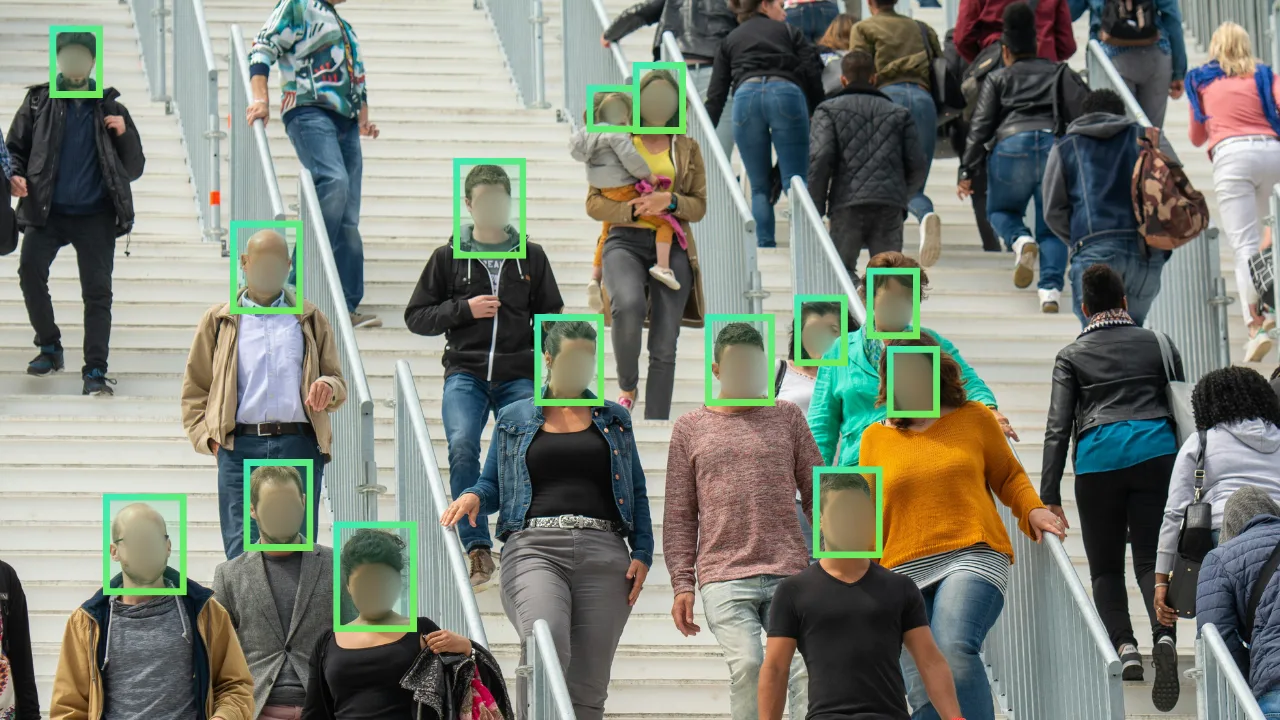
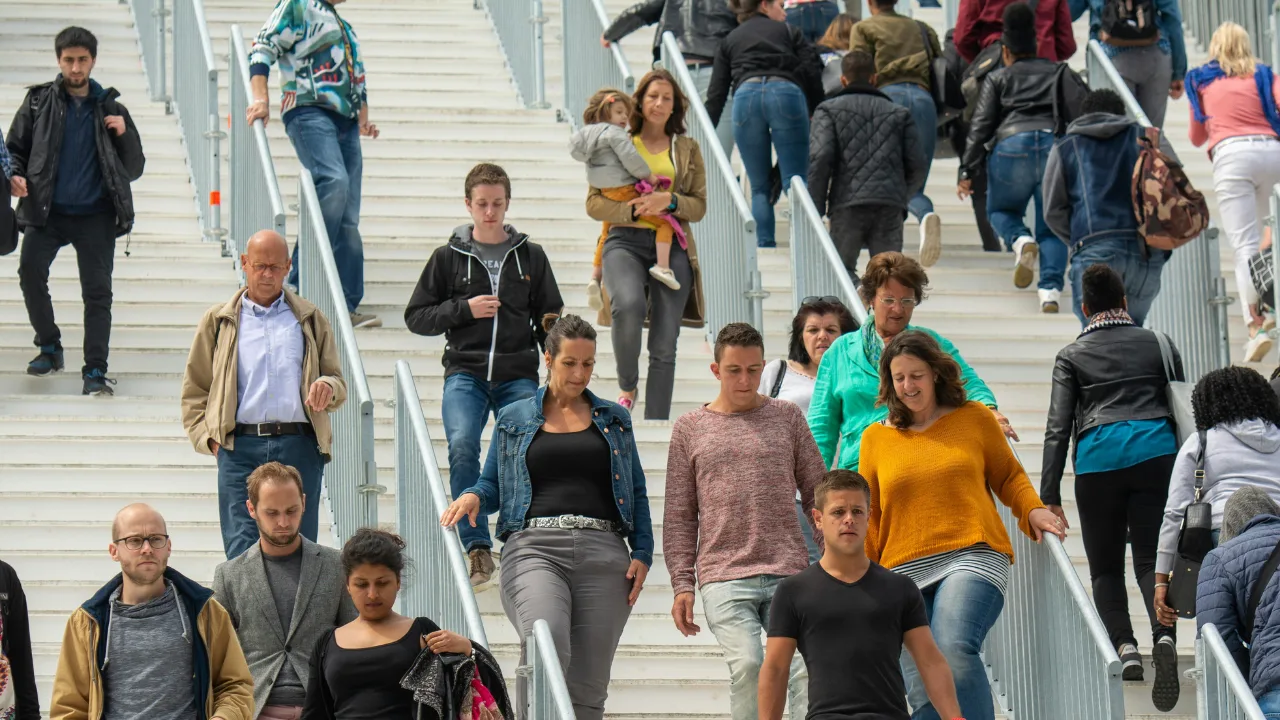 Before
Blur faces in photos before sharing
Use AI face detection to prepare group photos, marketplace images, and reports, then check every face in the exported image.
Group photos and marketplace listings
Review faces in the foreground and background, including reflections and people on screens. Keep the original separately and export a blurred copy for the intended audience.
Check more than faces
A name badge, address, document, or license plate may still identify someone. Inspect these details separately. Open the exported image at full size to confirm that the result hides what you intended.